
Conversion Tracking with PeerClick
How to connect PeerClick to Adexium so conversions come back to us via S2S postback. Postback endpoint, full parameter list, response codes and the postback key are described in S2S Tracker Basics — this page covers only the PeerClick-specific steps.
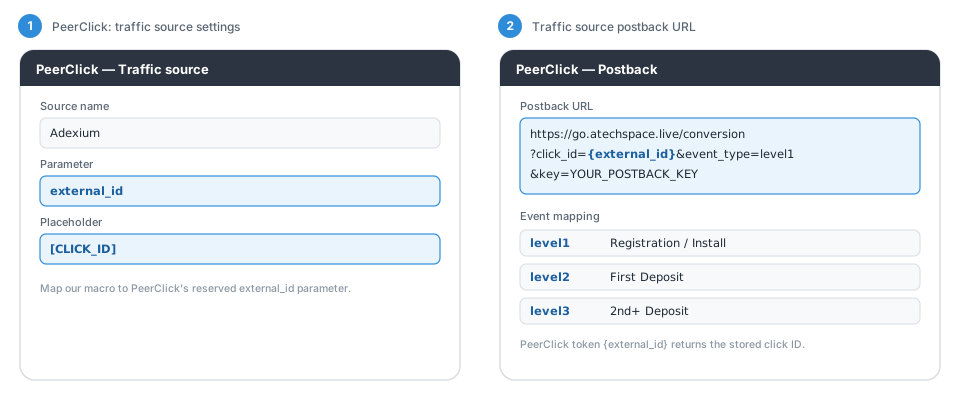
The illustration below is schematic: field names match PeerClick's settings, but the visual layout is simplified.
1. Traffic Source in PeerClick
In PeerClick create a traffic source "Adexium". In the Parameters section map our macro to PeerClick's reserved external_id parameter: parameter external_id, placeholder [CLICK_ID].
2. Traffic Source Postback URL
Set the postback URL with PeerClick's {external_id} token:
http
https://go.atechspace.live/conversion?click_id={external_id}&event_type=level1&key=YOUR_POSTBACK_KEYOptionally append &payout={payout}.
3. Campaign URL in Adexium
Campaign URL in Adexium:
http
https://YOUR-PEERCLICK-DOMAIN.com/PATH?external_id=[CLICK_ID]Event Mapping
| Event | Meaning |
|---|---|
level1 | Registration / Install |
level2 | First Deposit |
level3 | 2nd+ Deposit |
Verify
- Open the campaign URL preview in PeerClick and check that
[CLICK_ID]is present verbatim — the macro is replaced by Adexium at click time, not by the tracker. - Send a test click, take the real click ID from PeerClick's click log and fire the postback manually in a browser. You should get
{"message":"Accepted"}. - Check the Tracking page in the Adexium dashboard — the conversion appears in campaign statistics within a few minutes.
Questions — contact us via the support bot.