
Websites: Popunder and In-Page
Monetize a website with two ad formats:
- Popunder — an ad opens in a separate tab or window when the visitor clicks on your page.
- In-page — a push-style notification card appears on top of your page. It works in every browser and needs no subscription.
Both formats use the same one-line Adexium tag.
1. Create a placement
In the cabinet choose New placement → Web Popunder Placement or Web Push In-Page Placement and enter your Site URL. Our team reviews the site; the URL cannot be changed after creation. You can create both formats for the same site.
2. Add the tag
The placement page shows the tag with your Placement ID (WID) already filled in:
<script async src="https://cdn.okiksdelivery.com/assets/js/axm.min.js"
        data-wid="YOUR_WIDGET_ID" data-format="pops"></script>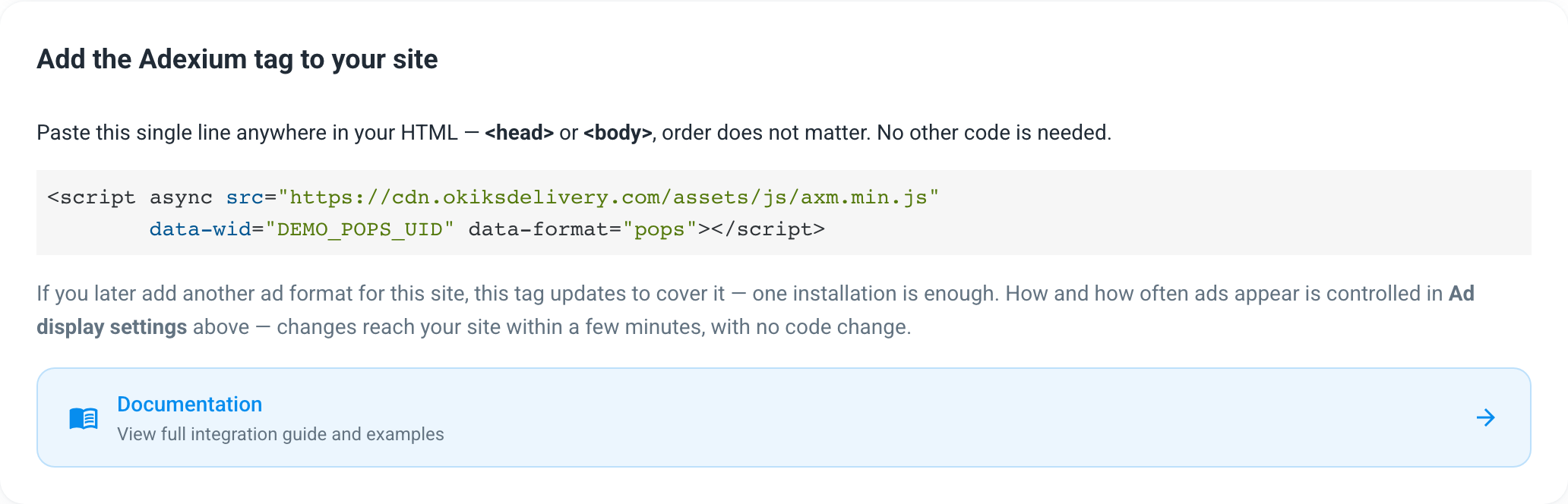
- Paste this single line anywhere in your HTML —
<head>or<body>, order does not matter. No other code is needed. data-wid— your Placement ID. When the site has several web placements (for example popunder and in-page), the cabinet lists all of them, separated by commas, and shows the same tag on each placement — install it once.data-format—popsorinpage. It appears only in a tag with a single placement and is used until that placement's settings reach our CDN.- If you add another ad format for the same site later, the installed tag picks it up — one installation is enough.
Copy the tag from the cabinet rather than typing it: the cabinet always shows the current address.
3. Choose how ads appear
Open the placement and use Ad display settings. Changes reach your site within a few minutes, with no code change. Start with a preset — Low, Medium or High — or set the fields yourself. The allowed range of each field is shown in the cabinet.
Popunder
| Setting | What it does |
|---|---|
| How the ad opens | New tab, Popunder (behind your page), Tabunder (your page reopens in a new tab) or Popup window. Popunder and tabunder keep your page in front; new tab and popup bring the ad forward. Tabunder makes visitors lose their scroll position and your analytics counts a second pageview; on phones it behaves like a new tab |
| Minimum gap between ads | How long one visitor waits between two ads |
| Ads per visitor per day | Counted per device |
| Wait after page load | Delay before the first ad |
| Only react to clicks on | CSS selector; leave empty to react to any click |
| Never react to clicks on | CSS selector for checkout buttons, login forms and other elements an ad would get in the way of |
| Pages to skip | One path per line, * is a wildcard, e.g. /checkout* |
In-page
| Setting | What it does |
|---|---|
| Card style | Compact (system-notification row), System glass (no button), Bar (full-width strip) or Media (large thumbnail) |
| Notification position | Bottom right, bottom left, top right or top left |
| Theme | Auto (follows the visitor's device theme), light or dark |
| Play a sound | Off by default |
| Auto-close after | How long a notification stays on screen |
| Minimum gap between ads | How long one visitor waits between two notifications |
| Ads per visitor per day | Counted per device |
| Wait after page load | Delay before the first notification |
| Start showing | As soon as the page loads, or after the visitor's first click |
| Pages to skip | One path per line, * is a wildcard |
4. Check the results
Statistics appear in Analytics and through the stats API.