
Campaign Management Guide
My Campaigns
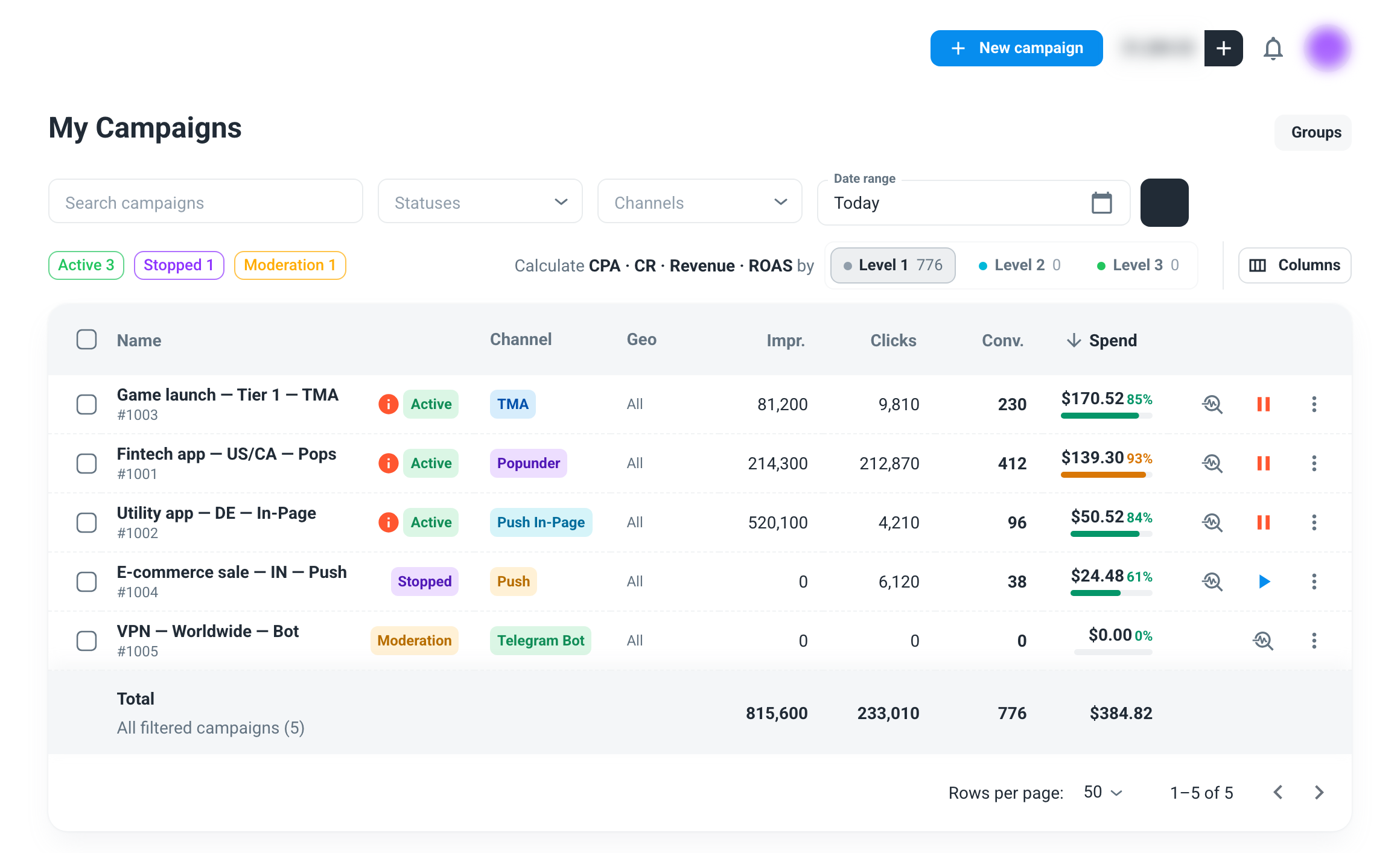
The My Campaigns page lists every campaign with its status, bid, budget and the main numbers for the selected period.
- Status chips filter the list by status and show how many campaigns are in each.
- Groups — create folders and move campaigns into them; each group shows totals for its campaigns and can be collapsed.
- Bulk actions — tick several campaigns to start, pause or move them to a group at once.
- Start / pause a single campaign from its row or from the campaign page.
Analytics
The Analytics page shows impressions, clicks, conversions, spend, CTR, CPC and CPA for one or several campaigns. Break the numbers down by date, hour, campaign, creative, country, region, language, source, device type, platform, browser, ISP network, VPN, Telegram Premium or TON wallet.
The Source breakdown is the starting point for optimization: it shows which sites and placements spend your budget and which of them convert.
Optimizing a campaign
- Track conversions. Without them you can only optimize for clicks. See conversion tracking.
- Cut what does not work. Block sources with spend and no conversions in Source optimization → Block / Allow, or let an Automated rule do it every hour.
- Pay more where it converts. Raise the bid for strong sources or countries in Source optimization → Micro bidding, or switch the campaign to Auto CPA.
- Refresh creatives. Compare creatives in the Creative breakdown and turn off the weaker ones.
- Refine targeting. Use the country, device and platform breakdowns to narrow the targeting.
Details of every option are on the Targeting page.
Notifications
Messages about your campaigns — a declined campaign, a campaign that spends without conversions, a tracking problem — arrive in Notifications (the bell in the dashboard). A declined campaign is also reported by email.